How to Combine Photos Into One in Your Browser
This guide walks through the full workflow for combining several photos into one image on gabungfoto.com. No app install and no account: just prepare your photos and open the editor in your browser.
- Free, no account
- Processed on Your Device • No Server Upload
- No Watermarks
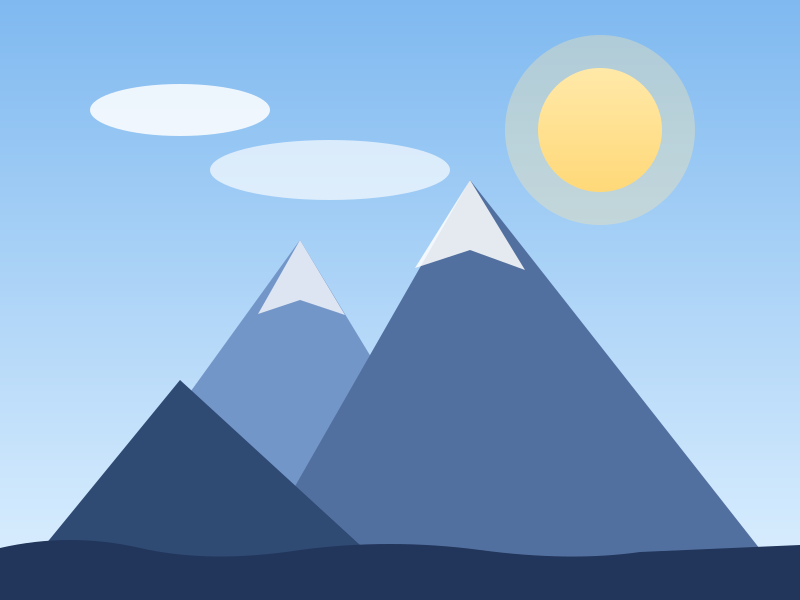 Photo 1
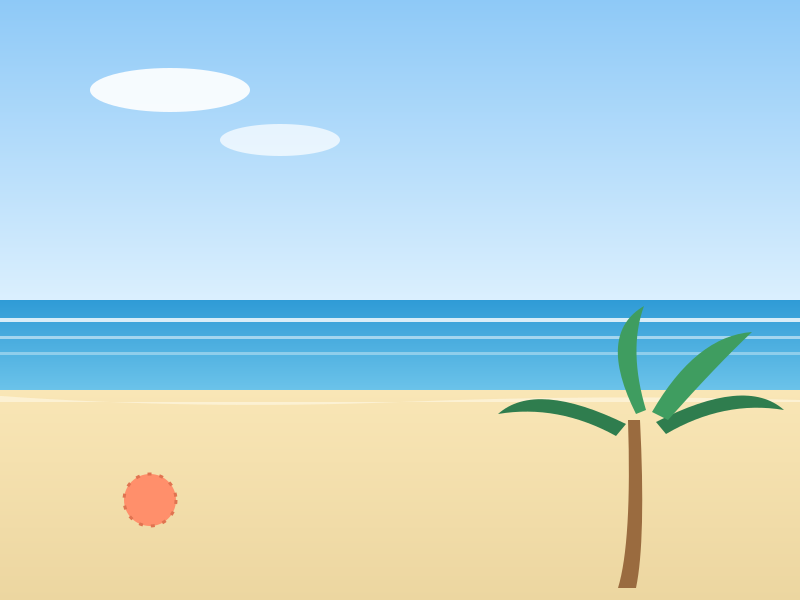 Photo 2
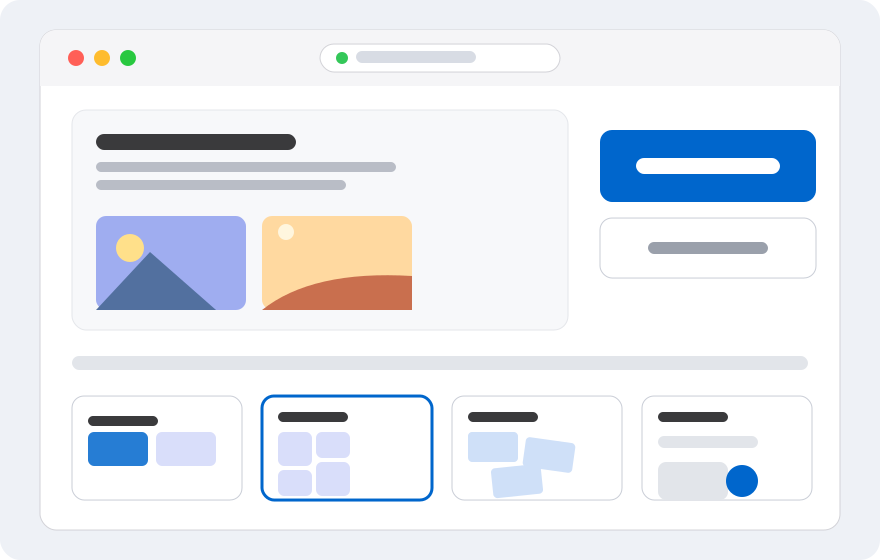
Layout illustration, not an editor screenshot.
What you need
Have the photos you want to combine ready and make sure the browser supports their format, such as JPG, PNG, or WebP. If the photos are on your phone, you can pick them straight from the gallery when the editor asks for a file.
Decide on the final destination: will the image be shared on social media, placed in a document, or printed? That choice helps you pick the right layout, aspect ratio, and export resolution.
Step 1: open the editor
Open gabungfoto.com and go to the editor. You can start from one of the layout presets or use a blank canvas. This guide starts from the horizontal layout.
On a phone, make sure the browser is up to date. The editor adapts to the screen size, but very large photos still need enough memory.
Step 2: choose and order your photos
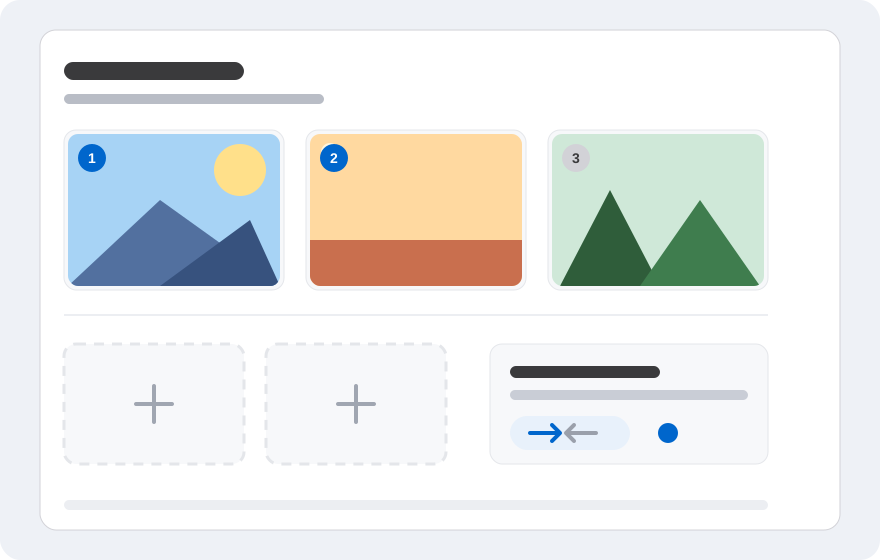
Select photos from your device. Once they appear on the canvas, check the order. In the horizontal layout the first photo usually sits on the left and the next one on the right. You can move or reorder them if needed.
Remove any photos you no longer need so the canvas does not get crowded. If part of a photo is cut off, use the crop tool or resize it so the important area stays visible.
Step 3: choose a layout
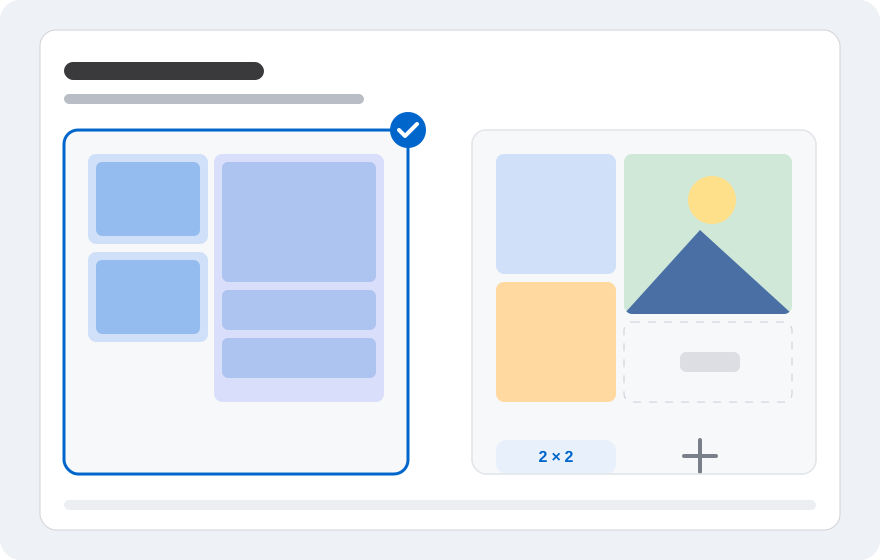
The horizontal layout works well for left-to-right comparisons. The vertical layout suits screenshots or portrait photos. The grid layout helps when you have more than two photos, while freeform gives you full control over placement.
Try a few layouts before deciding. Watch how the eye reads the image: a good arrangement makes the main message obvious without needing an explanation.
Step 4: tidy the canvas
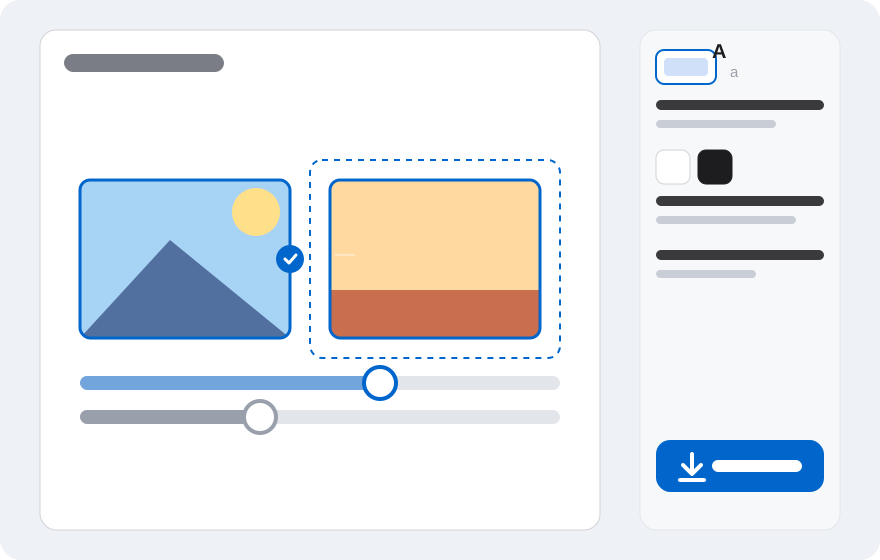
Adjust the spacing, position, and size of each photo. Make sure no subject is cut off at the edge. If needed, add a short caption such as a title, date, or note. Keep the text large enough to stay readable on a phone screen.
Check the background colour too. White or neutral backgrounds suit a clean look, while a transparent background helps if the image will sit on another surface.
Step 5: export and save
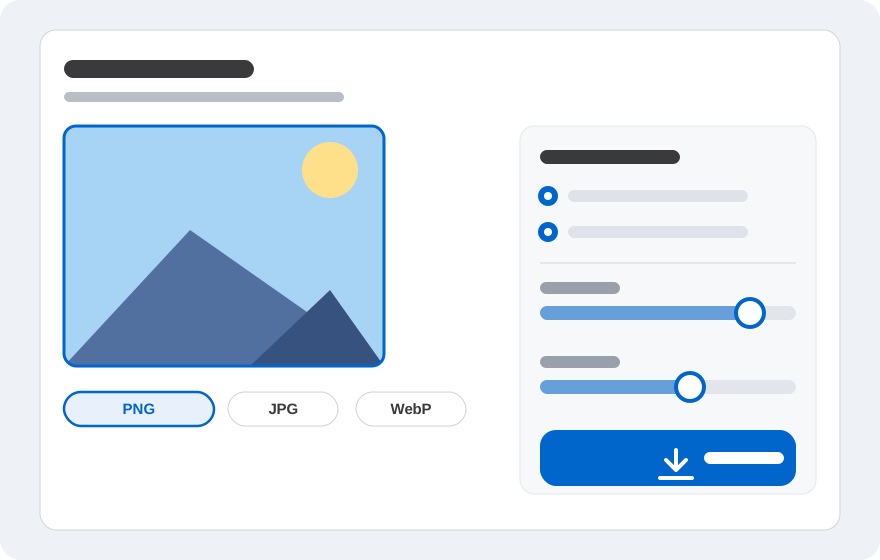
Open the export menu, choose PNG, JPG, or WebP, and set the quality or size if available. Click download and save the file to your device. Review the result before sharing to make sure nothing is cut off.
If the file is too large, create a compressed version with JPG or WebP. Keep the original first so you do not lose quality when you need to print or edit it again.
Common problems and fixes
If the editor feels slow, close other tabs and use smaller photos. If an export fails, reduce the number of photos, switch formats, or reload the page. Also check that the browser still has storage space available.
If the result looks blurry, check the resolution of the original photos. A small image that gets enlarged stays blurry even when exported as PNG. Use a source with enough resolution for the best result.
- Editor slow: close other tabs and use smaller photos.
- Export fails: reduce the number of photos or change the format.
- Blurry result: use higher-resolution photos.
- Photo cut off: reposition it or crop it again.
Frequently asked questions
Short answers to what people ask most before starting.
Do I need to create an account?
No. You can open the editor and choose photos without signing up.
Are my photos uploaded?
No. The main combining process runs in your browser and your photos are not sent to our servers.
Which layout is easiest for beginners?
Horizontal or vertical is easiest because the photos are arranged automatically. You can switch to grid or freeform if you need a different composition.
What resolution should the final image be?
It depends on the destination. A reasonable size is enough for social media. For print, use a higher resolution and save as PNG.
Can I combine more than two photos?
Yes. Use the grid layout or add more photos to the canvas as needed.
Can I edit the result again later?
The exported file is a flat image. If you want to change it, keep the original photos and rebuild the composition in the editor.
Ready to try?
Open the editor, choose your photos, and arrange the result right in your browser. No account and no image uploads to a server.