Combine Photos on Your Phone Right in the Browser
Combining photos on a phone usually means installing another app. You can do it straight from the browser instead. This guide explains the steps, including how to save memory and store the result in your gallery.
- Free, no account
- Processed on Your Device • No Server Upload
- No Watermarks




Layout illustration, not an editor screenshot.
No app, just a browser
Gabungfoto.com runs in the browser, so you do not need to download anything from an app store. As long as you have a modern browser, the editor works on Android, iPhone, or a tablet.
This approach also saves storage space. You do not have to update an app regularly; just keep the browser up to date.
Supported browsers and devices
Use the latest version of Chrome, Safari, Firefox, or Edge. Older browsers may not support some of the canvas or local-storage features the editor relies on.
Devices with more memory handle high-resolution photos more comfortably. If the phone feels slow, close other apps before opening the editor.
How to combine photos on your phone
Open gabungfoto.com in your browser and go to the editor. Pick photos from your gallery. Once they appear, choose a layout: horizontal for two photos side by side, vertical for screenshots, or grid for several photos.
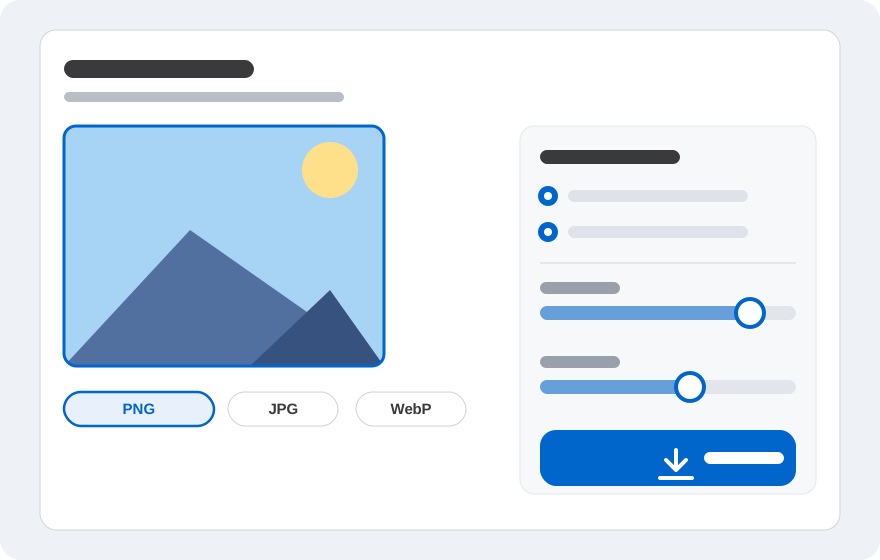
Adjust the position and size with the available gestures. Add text if needed. When you are done, open the export menu, choose a format, and save the image to your device.
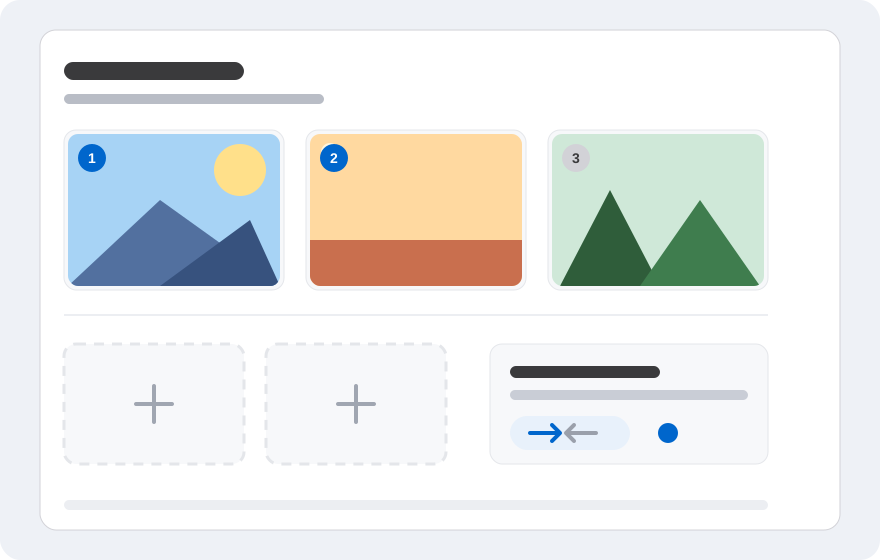
- Open the site in your phone browser.
- Choose photos from the gallery.
- Pick a layout and order.
- Adjust position, size, and text.
- Export and save to the gallery.
Tips to save memory
Photos from a phone camera can be very large. If the editor feels heavy, use a smaller version or crop the photo first. Reducing the number of photos also helps.
Close unused tabs and apps. If the browser keeps reloading, the device memory may be full; restart the phone before trying again.
How to save the result to your gallery
After you press export, the browser downloads the file. On Android it usually appears in the Download folder or Gallery. On iPhone it may be saved in Files or Photos, depending on the browser settings.
If the download does not appear, check the browser storage permission and make sure the device still has free space. You can also open the download link from the browser notification.
If the editor feels slow
Try reloading the page, reducing the number of photos, or using a lighter format. If the problem continues, try another browser to see whether the issue comes from the browser or the device.
For very large photos, consider editing on a computer. A larger screen and more memory make the arrangement process more comfortable.
Frequently asked questions
Short answers to what people ask most before starting.
Do I have to install an app?
No. Just open gabungfoto.com in your phone browser.
Does it work on iPhone?
Yes, with a modern browser such as Safari or Chrome. Exporting and saving files follow the browser settings on your iPhone.
Are my photos uploaded?
No. The main process runs in the browser and your photos are not sent to our servers to create the result.
Why is the editor slow on my phone?
Large photos and many open tabs can use up memory. Reduce the number of photos, close other apps, or use smaller files.
Where is the exported file saved?
Usually in the Download folder or Gallery. The exact location depends on the browser and device settings.
Can I combine chat screenshots?
Yes. Use the vertical layout and add the screenshots in conversation order.
Does the result have a watermark?
There is no automatic watermark. You can add your own text if you need one.
Ready to try?
Open the editor, choose your photos, and arrange the result right in your browser. No account and no image uploads to a server.